A questionnaire can be sent out via e-mail or SMS. Follow the steps below to send out your questionnaire.
Send by e-mail
- Start by opening a booking or a list of participants for those you want to send to. You proceed in the same way as when you send any e-mail. You can read more about e-mails by clicking here. You can e.g. click click on the gray box on a participant category from the Home view and click Send e-mail to send to an entire participant category.
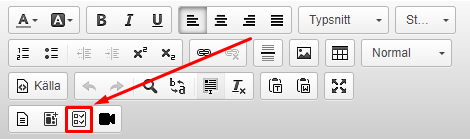
- When you create your email, there is a button in the text editor to add a questionnaire (see picture).
- Then select your questionnaire from the list by clicking on it.
- Now your questionnaire is included in the email as a clickable link.
Send via text message
- Start by opening a booking or a list of participants for those you want to send to. You proceed in the same way as when you send a regular text message. You can read more about text messages by clicking here. You can e.g. click click on the gray box on a participant category from the Home view and click on Send text message (SMS) to send to an entire participant category.
- When you create your text message, there is a drop-down list called Select link to include. You click on it and select Questionnaire. You will then receive another drop-down list under the existing one where you can choose which questionnaire you want to include in the text message.
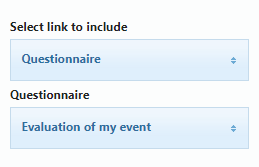
NOTE! You will not see the link inserted in the text. However, it appears in the preview before sending out.
Comments
0 comments
Article is closed for comments.