This Step-By-Step Guide contains an overview how to clone an event within Trippus.
We will go through a brief description of the steps and, if available, link to additional support articles containing further information.
-------------------------------------------------- ----
1. Duplicate the Template
- Log in to Trippus system
- Click on the Websites of the black left menu
- Click Add web (simplified) in the upper right
- Fill in the fields (details for US Clients below)
- Website Name
- Main Language - English
- Default Country - USA
- Currency - USD - US Dollars
- VAT Settings - Don't show VAT prices
- Click Copy content
- Select the event you would like to use as a template
- NOTE: The language and currency must be the same in order to clone an event
- Click Add website
- Check all contents that would would like cloned from the template event
- Click Save
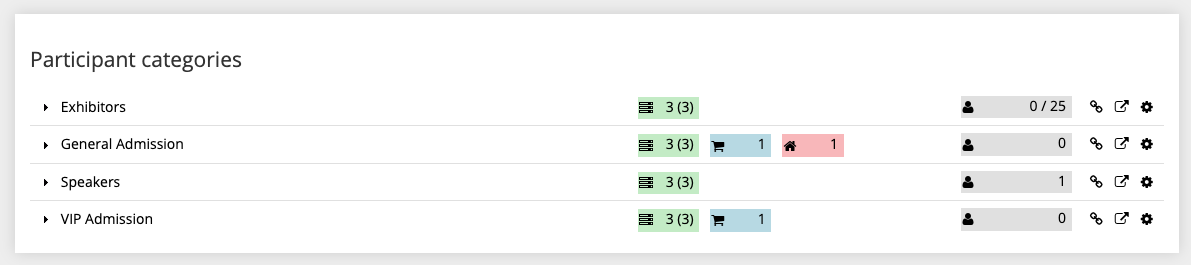
Steps 2-3 will review connecting registration questions, activities, and accommodation. As a reminder, you can see this from the homepage view. The green box is number of registration questions connected, blue box is number of activities connected, and red box is number of accommodation (hotels) connected.
2. Connect Registration Questions and Activities
- Click on Home for your main event page
- Click on a Participant Category to expand the view
- On the General Info tab, connect the registration questions you would like to ask
- On the Activities tab, connect any Activities you would like to add
- Repeat the above for all participant categories.
3. Connect Accommodation
- Click Participant Categories on the sidebar
- Click Edit on a category
- Scroll to Accommodation Section and click Edit in the top right corner
- Tip! If this doesn't appear, you need to change the 'This category can book accommodation' question to Yes
- Click Choose Hotel and select a hotel
- Click Next
- Fill out information
- Click Save
- Repeat the above for all participant categories
4. Connect Event Pages
- Click Event Pages on the sidebar
- Click on a category
- Drag & Drop menu items to connect them
5. Connect Event App Content
- Click Event Apps on the sidebar
- Drag & Drop menu items to connect them
6. Add Promotional Codes
- Click Promotional Codes on the sidebar
- Click Add
- Type in code(s) you wish to create
- Click Save
- Click Participant Categories on the sidebar
- Click Edit next to a category you'd like to connect the promo code to
- Scroll to Registration Fee and click Edit
- Click Promotional Codes
- Click the checkbox next to the codes you wish to connect
- Click Ok
- Type the price for the Promotional Code
- Click save
- To set valid dates for the promo code
- Click the lock button next to the code name
- Select when you want the code to expire
- Click save
7. Double Check VAT
- Click Participant Categories on the sidebar
- Click Edit on a category
- Click Edit next to Registration Fee (if VAT is not 0)
- Change VAT to 0
- Click Save
- Click Activities on the sidebar
- Click Change Activity Information
- Change VAT to 0 (if not already)
- Click Accommodation on the sidebar
- Change VAT to 0 (if not already)
Comments
0 comments
Article is closed for comments.