How to create your own registration fields or questions:
- Click home
- Click Create/edit element under the header Web
- Click Custom fields
- Click Add Field
- Type the name of the question or what you want the field to be called
- Select the appropriate Field Type (see descriptions below)
- Tip! If you select List or Check Box an additional tab will appear titled 'add list choice' or 'agreement text'
- If you wish to hide this custom field from the attendee's confirmation email, click Additional Settings and the checkbox
- Click Add
Field Types
There are a number of different field types to choose from. The types that can be selected are:
Text field
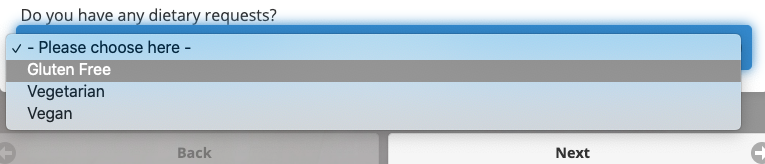
List
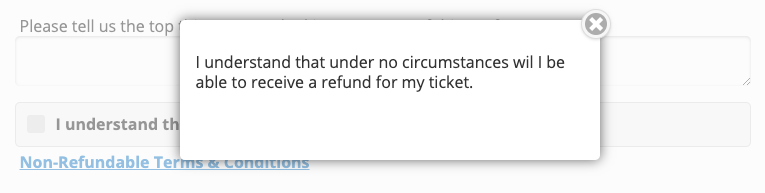
Checkbox
Heading
This is not an actionable field - participants don't do anything to interact with this field, it's simply a header to break apart your page
Text box
Up to 500 characters
Large text box
Up to 2000 characters
Comments
0 comments
Article is closed for comments.